How to Add a Waitlist to Your Sign Up
When a slot fills up, people can still get in line. If someone cancels, the next person moves into the spot and gets an email.
 Posted by Trey Mosier
Date:08/20/2026
 Posted by Trey Mosier
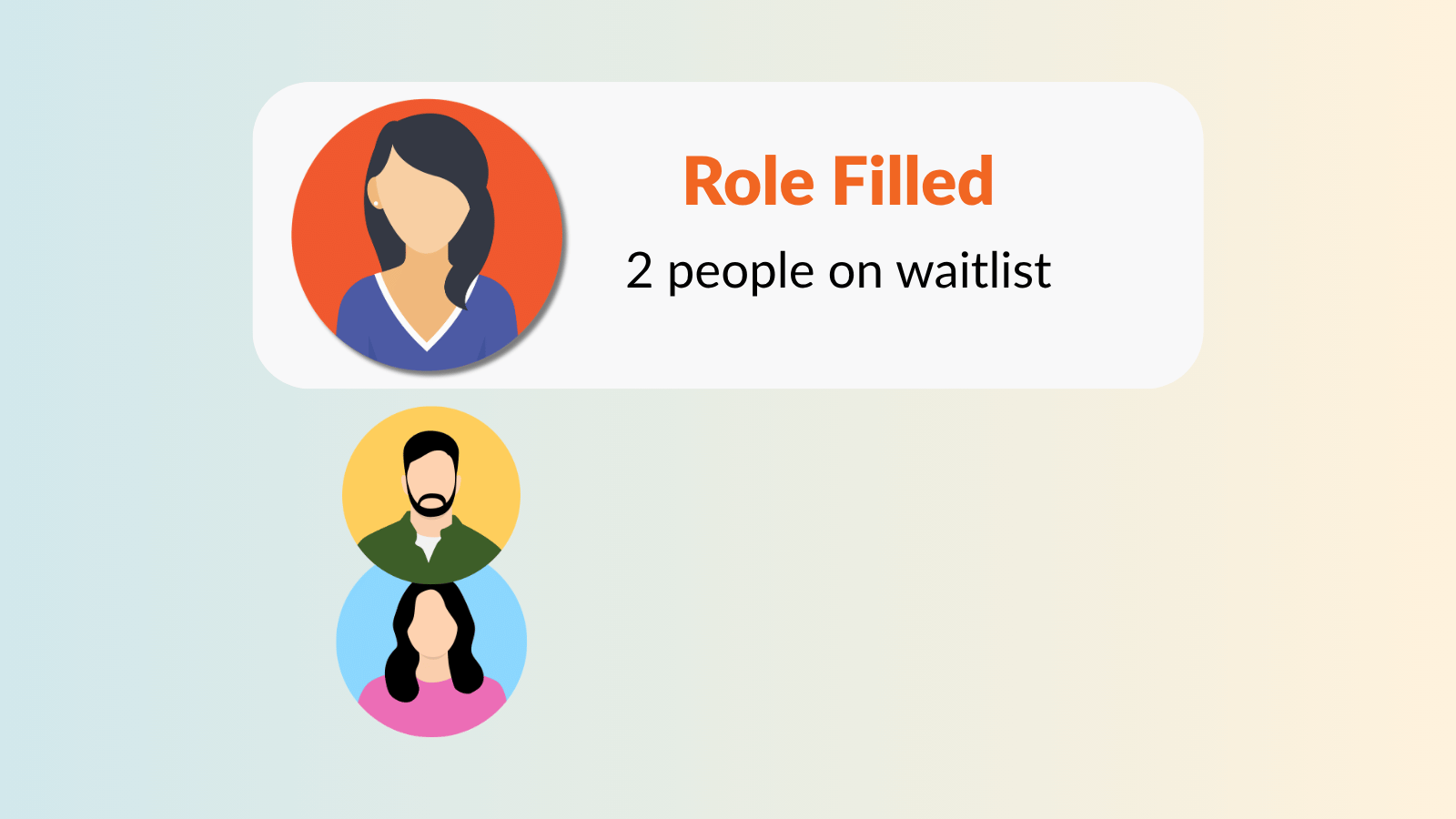
A waitlist lets people line up for a slot that's already full. When someone cancels, SignUpGenius moves the next person on the waitlist into the open spot and sends them an email. You don't have to watch the sign up, find the next name, or send any messages yourself.
That matters most when spots go fast. The art club fills in an hour, then two families drop out the week before it starts. With a waitlist, those spots refill on their own.
Once a slot is full, new people can join its waitlist instead of leaving. The waitlist keeps them in the order they joined.
When someone in that slot cancels, the first person on the waitlist moves into the open spot. SignUpGenius emails them right away so they know they're in. Everyone else moves up one place in line.
There's no limit on how many people can join a waitlist. You don't have to guess how many backups you'll need.
Use a waitlist when your limit is real, like a room that holds 12 kids, one coach per 8 players, or a teacher with only so many conference times. If the limit is soft, just raise the slot quantity instead. A potluck doesn't need a waitlist for desserts. It needs more dessert slots.
These are the situations where a waitlist saves the most back-and-forth.
| Situation | How to set up the slot | What the waitlist does for you |
|---|---|---|
| Afterschool clubs and programs | One slot per club or session, with the quantity set to your real cap. | Families who miss out stay in line. A dropped spot goes to the next child without a parent email chain. |
| Lessons and small classes | One slot per class time, with the quantity matched to your group size. | Cancellations refill on their own, so classes stay full. |
| Parent-teacher conferences | One person per time slot, with a waitlist on the popular times. | Parents can line up for the after-work times. If one opens, the next parent gets it. |
| Field trip chaperones | One slot with the quantity set to the number of adults the trip allows. | When a chaperone backs out, a backup is already confirmed and notified. |
| Popular volunteer shifts | One slot per shift, with a waitlist on the shifts that fill first. | Eager volunteers stay engaged instead of being turned away. |
Genius Tip
Add waitlists only to the slots that fill first. When a waitlist shows up on every slot, people may join a line when an open spot is right below it.
You turn on a waitlist one slot at a time, so you control exactly which spots get one.
That's all the setup. From then on, people who find a full slot can join its waitlist, and open spots fill on their own.
You can send messages to people on a waitlist just like anyone else on your sign up. When you write a message, choose who gets it:
Sending updates to both groups means someone who moves in at the last minute already has the details.
Genius Tip
After you add a waitlist, use Messaging to send people on it a short note. Tell them a spot could open up any time and that the email telling them they're in will come from SignUpGenius. Ask them to check their spam folder so they don't miss it.
Waitlists are included on the Gold, Platinum, and Enterprise plans. Every plan, including Free, can create sign ups, send reminders, and use every SignUpGenius product. Gold adds tools for organizers running busy sign ups, like waitlists, start and stop dates, and extra admins.
Try waitlists free for 10 days
Start a free trial to use waitlists and other premium features on a real sign up. You can decide on a plan after you see how it works for your group.
Compare SignUpGenius plansIf someone cancels, does the next person on the waitlist get the spot automatically?
Yes. When someone cancels, SignUpGenius moves the first person on that slot's waitlist into the open spot and emails them that they're in. You don't need to contact anyone or approve the change. People join the waitlist in order, so the person who joined first moves up first.
Is there a limit to how many people can join a waitlist?
No. A waitlist on a SignUpGenius sign up has no cap, so as many people as want to can get in line. Each person keeps their place in the order they joined. If more spots open later, people keep moving up one at a time.
I run an afterschool program. Can I use a waitlist when a club or session is full?
Yes. Give each club or session its own slot and set the quantity to your real limit. Then turn on a waitlist for that slot. When a family drops out, the next child on the list moves in and the parent gets an email, so you don't have to work through a list of names yourself.
Which SignUpGenius plans include the waitlist feature?
Waitlists are included on the Gold, Platinum, and Enterprise plans. You can try them with a free 10-day trial, and no credit card is required. Every plan, including Free, can create sign ups and use all SignUpGenius products. See the pricing page for plan details.
Can I send a message to just the people on my waitlist?
Yes. When you send a message from your sign up, choose "People who are on a waitlist" to reach only them. To reach everyone, choose "People who have signed up and people who are on a waitlist." The second option is useful for room changes or new times that affect everyone.
SignUpGenius Feature Guide
See the tools available on your sign ups, from reminders to tabbed sign ups and reports.
Browse the SignUpGenius feature guideGet the Most From Your Free Trial
How to test premium features like waitlists on a sign up you're already planning.
Make the most of your free trialThis tool is awesome. I have been a volunteer coordinator for the CHS Titan Band for the past three years. It's always been a hassle to scramble for parent volunteers the week of an event, doing everything via email. This year we started using SignUpGenius, and every single one of our events is completely filled. It's so easy to set up and use. Thank you, thank you, thank you!
A Kullenberg