How to Add, Edit or Delete People on a Sign Up
Plans change. Here's how to update your sign up in seconds without starting over.
 Posted by Trey Mosier
Date:07/14/2026
 Posted by Trey Mosier
Sign ups rarely stay exactly as planned. Someone cancels, a volunteer who signed up on paper needs to be added to the online list, or two people want to swap slots. SignUpGenius lets you add, edit, move or delete participants directly from your sign up, so it stays accurate without you needing to recreate anything.
You can make all of these changes from your sign up's Admin Toolbar in a couple clicks, whether you're adding someone new, fixing a mistake, or moving a participant to a different slot.

Add or Delete button on sign up
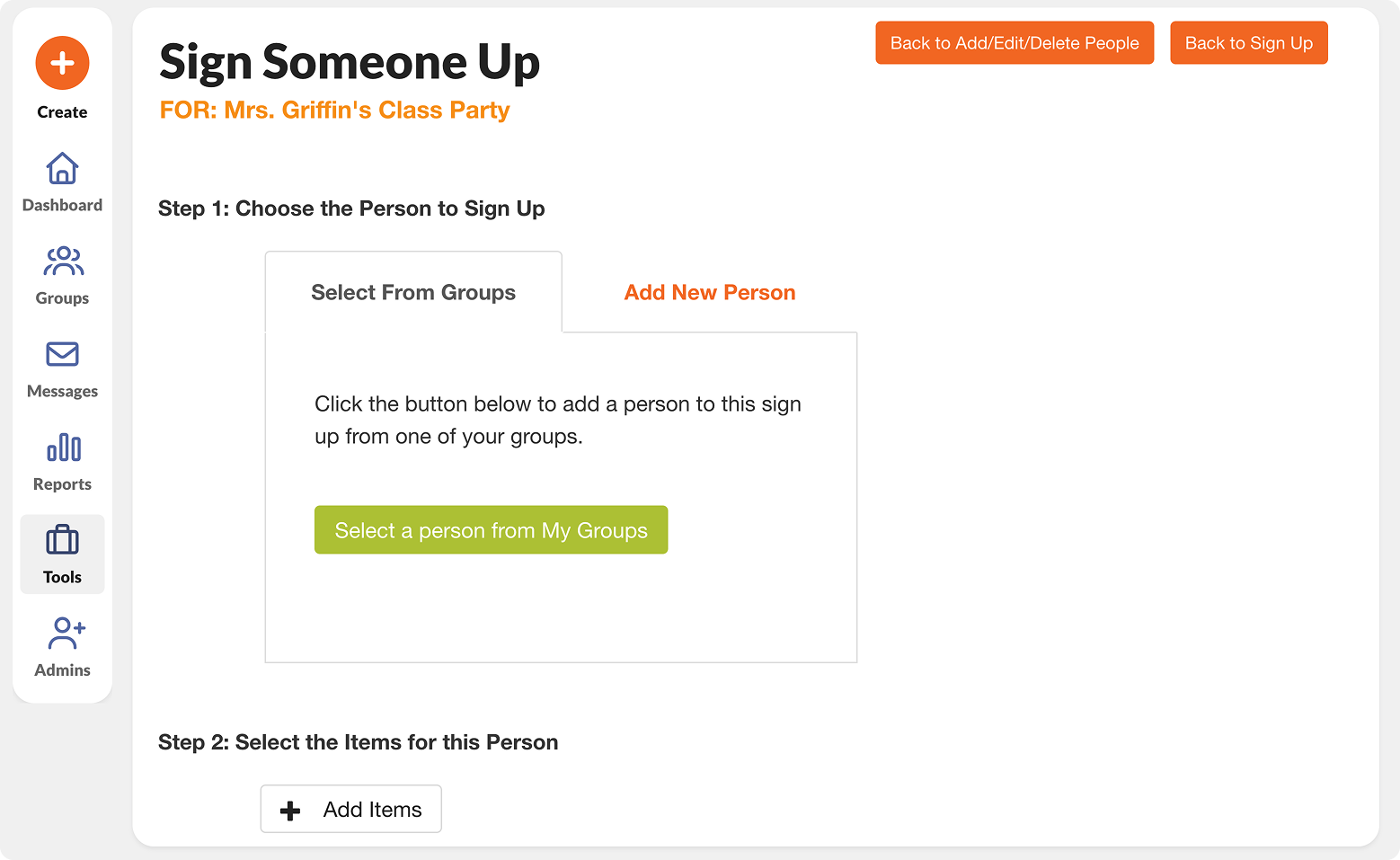
Add a person from a Group or a New Person
👉 For even more detail, visit our help center walkthrough to learn even more.

Genius Tip
If you're logging several offline sign ups at once, add them all before your next automatic reminder goes out. That way no one gets a reminder for a slot they already filled in person.
| Situation | What To Do | Result |
|---|---|---|
| Someone cancels by phone or email | Remove them from their slot | Slot reopens instantly for others |
| A paper sign up needs to go online | Add them as a new person | One accurate list for everyone |
| Two people want to trade slots | Move each person to the other's slot | No re-entry, no lost information |
Can I add someone to my sign up who never signed up online?
Yes. Use Add / Edit / Delete People, then Add New Person to enter their name and email and assign them to an open slot. This keeps offline sign ups in the same coverage view as everyone else.
What happens if I delete someone from a slot?
The slot reopens immediately and shows as available, so anyone viewing the sign up can claim it right away.
Can I move someone to a different slot instead of deleting and re-adding them?
Yes. Select Move Selected, choose the participant, and assign them to the new slot. Their original information carries over, so you don't need to re-enter it.
Love, love, love this program! Volunteering is my second job to motherhood and womanhood, and I was tired of frustrating efforts to make life a little easier. So when a fellow mom introduced me to SignUpGenius, I was hooked the very first time. I want to let the SignUpGenius creators and workers know how grateful I am for this amazing tool. It has increased the joy and decreased the stress!
Anne Johnson